
Lostopedia User Guide
Welcome to Lostopedia, your campus-based lost and found platform! This comprehensive guide will help you navigate the platform, post items, connect with others, and successfully recover lost belongings.
Table of Contents
- Overview
- Getting Started
- Posting Items
- Completing Items
- Messaging (Paused)
- Reputation System
- Recovery Badges & Recognition
- Reporting Issues
- Ethical Usage Guide
- Tips for Success
- Lost and Found Office (DSA)
Overview
What is Lostopedia?
Lostopedia is a campus-based platform that connects students and staff who have found items with those searching for lost belongings. Our platform uses AI-powered matching and geolocation services to make item recovery fast and safe.
Core Features
- 📝 Item Management - Post lost or found items with photos, descriptions, and location details
- 🤖 AI-Powered Matching - Intelligent suggestions connect lost and found items using semantic similarity
- 📬 Contact via Profiles - Reach posters using the contact details they choose to share on their public profile
- 📍 Geolocation Discovery - Interactive maps show where items were found or lost
- ⭐ Reputation System - Build trust through successful item returns and quality contributions
- 🏆 Recovery Badges - Earn recognition for helping others recover their items
- 🛡️ Trust & Safety - Content moderation and flagging system ensure platform integrity
- ⏰ Automatic Cleanup - Items automatically archive after recovery or 90 days
Getting Started
Browsing without an account
You can explore items and the map without signing in:
- Browse – Browse and filter lost and found items at
/search - Map – View item locations on the interactive map at
/map - Item details – Open any listing to read the description and location
To contact a poster, post an item, or use My Items, you need to sign up or log in. On an item page, use “Log in to contact poster” to sign in and return to that item.
Lost and Found Office (DSA)
Items marked office pickup are held at the campus Lost & Found desk run by the Department of Student Affairs (DSA).

Ground floor, Room A005. The main entrance shows the “Bangunan Tan Sri Khaw Kai Boh” name in large letters.
- Building: Bangunan Tan Sri Khaw Kai Boh (Room A005, Ground Floor)
- Telephone: 03-41450123 Ext 3752
- Email: dsa@tarc.edu.my
- Office hours: 8.30am–5.30pm (Monday–Friday)
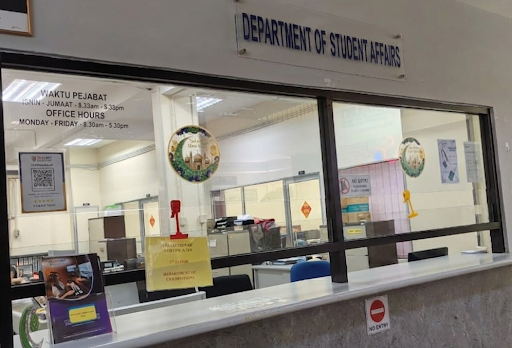
The Lost & Found desk is at the Department of Student Affairs counter. Hours are posted on the glass (Monday–Friday, 8:30am–5:30pm).
For directions, use the pinned Google Maps location for this office, open Open in Maps from an office-pickup listing, or search for Bangunan Tan Sri Khaw Kai Boh. Verify any map pin with DSA if you are unsure.
Creating an Account
-
Navigate to Sign Up
- Click the "Sign Up" button in the top navigation bar
- Or visit the sign-up page directly
-
Fill Out Registration Form
- Display Name: Choose a name that will be visible to other users (2-50 characters)
- Email Address: Use your campus email address for verification
- Password: Must meet the following requirements:
- Minimum 8 characters
- At least 1 uppercase letter
- At least 1 number
- Confirm Password: Re-enter your password
- Accept Terms: Read and accept the terms and conditions
-
Verify Your Email
- Check your email inbox for a verification link
- Click the link to verify your email address
- You'll be redirected to the verification confirmation page
-
Complete Your Profile
- After verification, you'll be taken to your dashboard
- Your profile is automatically created with your display name
- You can update your profile information later if needed
Logging In
-
Navigate to Login
- Click the "Login" button in the top navigation bar
- Or visit the login page directly
-
Enter Credentials
- Enter your registered email address
- Enter your password
-
Access Your Dashboard
- After successful login, you'll be redirected to your dashboard
- Your dashboard shows your items and activity
Password Requirements
For security, your password must:
- Be at least 8 characters long
- Contain at least one uppercase letter (A-Z)
- Contain at least one number (0-9)
Tip: Use a unique password that you don't use elsewhere. Consider using a password manager to keep your account secure.
Posting Items
How to Post a Lost Item
If you've lost something and want to report it:
-
Navigate to Post Page
- Click "Post Item" in the navigation bar
- Or click the "Post New Item" button on your dashboard
-
Select Item Type
- Choose "Lost" from the type selector
- This indicates you're looking for your item
-
Fill Out Item Details
- Title (Required): A brief, descriptive title (e.g., "Lost Blue Backpack")
- Description (Required): Detailed description including:
- Brand, color, size, or model
- Distinctive features or marks
- Contents (if applicable)
- Any other identifying information
- Category (Required): Select the most appropriate category:
- Electronics
- Clothing & Accessories
- Books & Documents
- Keys & Cards
- Bags & Luggage
- Personal Items
- Other
- Location (Required): Where you lost the item
- Enter a text description (e.g., "Library, 2nd floor")
- Optionally, click on the map to set exact coordinates
- Date Lost (Optional): When you lost the item
- Images (Optional but Recommended): Upload up to 5 photos
- Supported formats: JPEG, PNG, WebP, GIF
- Maximum file size: 5MB per image
- Tips: Include multiple angles, close-ups of distinctive features
-
Review and Submit
- Review all information for accuracy
- Click "Post Item" to submit
- You'll be redirected to your item's detail page
How to Post a Found Item
If you've found something and want to help return it:
-
Navigate to Post Page
- Click "Post Item" in the navigation bar
- Or click the "Post New Item" button on your dashboard
-
Select Item Type
- Choose "Found" from the type selector
- This indicates you have found an item
-
Fill Out Item Details
- Title (Required): A brief, descriptive title (e.g., "Found Black Wallet")
- Description (Required): Describe what you found:
- General appearance (color, size, condition)
- Any visible identifying marks or features
- Where you found it
- When you found it (if known)
- Category (Required): Select the most appropriate category
- Location (Required): Where you found the item
- Enter a text description
- Important: Consider privacy - you can set approximate location on the map
- Date Found (Optional): When you found the item
- Images (Highly Recommended): Upload clear photos
- Show the item from different angles
- Include any distinctive features or marks
- Avoid showing sensitive information (e.g., ID numbers, credit cards)
-
Review and Submit
- Review all information
- Click "Post Item" to submit
- Your item will appear in search results and AI matching
Posting Limits
- Rate Limit: You can post up to 10 items per hour
- Purpose: This limit prevents spam and ensures quality listings
- If Exceeded: You'll see a message indicating when you can post again
Tips for Effective Postings
- Be Specific: Detailed descriptions help owners identify their items
- Use Clear Photos: Good lighting and multiple angles improve recognition
- Update Location: If you move a found item, update the location in your post
- Check Matches: Review AI-suggested matches regularly
- Respond Promptly: If someone contacts you, respond quickly to facilitate returns
Completing Items
When to Mark an Item as Completed
Mark your item as completed when:
- For Lost Items: You've been reunited with your item
- For Found Items: You've successfully returned the item to its owner
How to Complete an Item (As Owner)
If you posted a lost item and found it:
-
Navigate to My Items
- Click "My Items" in the navigation bar
- Or access it from your dashboard
-
Find Your Item
- Browse your active items
- Use filters to find specific items if needed
-
Mark as Completed
- Click the "Complete" button on the item card
- A Recovery Modal will appear asking if someone helped you recover the item
-
Credit a Helper (Optional) The modal provides three options:
Option A: Quick Pick (if available)
- If you’ve previously interacted with someone about this item, they may appear as quick picks
- Click on their avatar/name to select them as the helper
- If you don’t see them, use search below
Option B: Search for Another User
- Click "Search for another user"
- Enter their display name
- Select them from the search results
- Use this if someone helped you and you want to credit them directly
Option C: Recovered on My Own
- Click "Clear selection" or simply don't select anyone
- Click "Mark as Recovered" to complete without crediting a helper
-
Confirm Completion
- Click "Complete & Credit Helper" (if helper selected) or "Mark as Recovered" (if no helper)
- The item will be marked as completed
-
What Happens
- Item status changes to "completed"
- Item is removed from search results
- You earn +5 reputation points
- If you credited a helper:
- They receive +15 reputation points
- They get a notification about being credited
- They may earn badges based on their total returns
- Item remains visible in your "Completed" tab for reference
How to Complete an Item (As Finder)
If you posted a found item and returned it to the owner:
-
Navigate to My Items
- Click "My Items" in the navigation bar
- Or access it from your dashboard
-
Find Your Found Item
- Browse your active found items
- Use filters to find specific items if needed
-
Mark as Completed
- Click the "Complete" button on the item card
- Confirm the action in the dialog
- The item will be marked as completed
-
What Happens
- Item status changes to "completed"
- Item is removed from search results
- You earn +5 reputation points
- Item remains visible in your "Completed" tab for reference
Note: When you return a found item to its owner, they will mark their lost item as complete and can credit you as the helper. You'll receive a notification when they credit you, which includes +15 reputation points.
Benefits of Completing Items
For Owners:
- Reputation Points: Earn +5 points for completing your item
- Accurate Records: Helps maintain platform data integrity
- Community Trust: Shows you're an active, responsible user
- Search Cleanup: Removes completed items from active searches
- Help Others: Crediting helpers rewards community members who assist you
For Helpers:
- Reputation Points: Earn +15 points when credited by an owner (primary way to build reputation!)
- Recovery Badges: Earn badges as you help return more items:
- 🤝 Good Samaritan - Help return 1 item
- ⭐ Community Helper - Help return 5 items
- 🏆 Recovery Hero - Help return 10 items
- 👑 Legend - Help return 25 items
- Profile Recognition: Badges are displayed on your profile
- Community Impact: Your "Helped return X items" counter increases
Item Expiration
- Items automatically expire after 90 days if not completed
- Expired items are archived but remain visible to the owner
- You can extend expiration if needed (up to 3 extensions per item)
Messaging (Paused)
Overview
Lostopedia’s in-app messaging is currently disabled while we iterate on moderation and safety.
How to contact a poster
-
Open the item listing
- Browse items or view AI-suggested matches
- Click an item to view details
-
Go to the poster’s public profile
- Click the poster name/avatar to open their profile
-
Use their shared contact methods
- Posters can share contact details like email (and optionally a phone number) on their profile
- Use those details to coordinate verification and pickup/return
Safety notes for off-platform contact
- Keep it item-specific: Include the item title/link and ask for identifying details before meeting
- Meet safely: Prefer public, well-lit locations or your campus lost & found office when appropriate
- Avoid sensitive data: Don’t share passwords, OTPs, or financial details
Reputation System
What is Reputation?
Your reputation score reflects your trustworthiness and positive contributions to the Lostopedia community. It helps other users identify reliable community members and shows your level of experience on the platform.
Understanding Your Reputation Score
- Type: Integer points (no maximum limit)
- Starting Score: New users begin with 100 points
- Range: Unlimited upward growth; falling below 0 triggers automatic account suspension
- Display: Shown as point total with tier badge (e.g., "🟢 Trusted • 250 pts")
Reputation Tiers
Your reputation score determines your tier, which is displayed throughout the platform:
| Tier | Score Range | Badge | What It Means |
|---|---|---|---|
| 🔴 New | 0-49 pts | Red | New or low-activity user |
| 🟡 Active | 50-149 pts | Yellow | Regular participant |
| 🟢 Trusted | 150-299 pts | Green | Established, reliable member |
| 🔵 Veteran | 300-499 pts | Blue | Highly active contributor |
| 🟣 Elite | 500+ pts | Purple | Community leader with exceptional contribution |
Example Progression:
- Start: 100 pts (🟡 Active)
- Post 5 items + complete 2: 120 pts (🟡 Active)
- Help return 10 items: 270 pts (🟢 Trusted)
- Help return 50 items: 870 pts (🟣 Elite)
How to Earn Reputation Points
Automatic Events
1. Posting Items (+2 points)
- Earn points when you post a lost or found item
- Limit: Maximum 10 posts per day (max +20 points/day)
- Purpose: Encourages quality participation
2. Completing Items (+5 points)
- Earn points when you mark your item as completed
- No Limit: Complete unlimited items
- Purpose: Rewards successful item recovery
3. Returning Items (+15 points) 🌟
- Earn points when an owner credits you as a helper during item completion
- How it works: When you help someone recover their lost item, they can credit you when marking their item as complete
- Notification: You'll receive a notification when credited
- Purpose: Primary way to build high reputation - rewards helpful community members
- No Limit: No limit on how many times you can be credited
- Impact: Helping return 10 items = +150 pts (can reach Trusted tier!)
Penalties
1. Flagged Content Validated (-25 points)
- Lose points if admin validates a flag on your content
- Content is removed from the platform
- Purpose: Serious penalty for rule violations
2. Automatic Account Suspension (below 0 points)
- If your reputation falls below 0 points from any event, your account is automatically suspended
- How it happens: Multiple validated flags or serious violations
- Example: 4 validated flags = -100 points (new user at 100 would be suspended)
- Recovery: Contact support to appeal the suspension
- Purpose: Prevents abuse and spam
Where Reputation is Shown
- User Profile: Primary display location
- Item Cards: Poster's reputation next to each item
- Admin Panel: Full reputation history (admins only)
Maintaining Good Reputation
Best Practices:
- ✅ Post quality items with clear descriptions
- ✅ Mark items as completed when recovered
- ✅ Credit helpers who assisted you (helps build community trust)
- ✅ Return found items to owners promptly (best way to earn points!)
- ✅ Use respectful language when contacting others
- ✅ Follow platform guidelines and rules
- ❌ Avoid spam or duplicate postings
- ❌ Don't post inappropriate content
- ❌ Don't engage in fraudulent activities
Building and Recovering Reputation
To Increase Your Reputation:
- Help Others (+15 pts each): The fastest way to build reputation is by returning found items. Helping return 10 items = +150 points!
- Complete Your Items (+5 pts each): Mark items as completed when recovered
- Stay Active (+2 pts each): Post quality items (up to 10/day)
- Be Helpful: Respond promptly when someone contacts you and assist others
If Your Reputation Decreases:
- Focus on Helping: Return found items to quickly rebuild points
- Avoid Violations: Prevent further penalties by following guidelines
- Contact Support: If you believe a penalty was applied incorrectly
- Stay Active: Continue positive contributions to offset losses
Important Notes:
- There is no maximum reputation score - the sky's the limit!
- If your score falls below 0, your account is automatically suspended
- Active helpers can reach 500+ points (Elite tier) through consistent positive contributions
Recovery Badges & Recognition
What are Recovery Badges?
Recovery badges are special achievements that recognize community members who help others recover their lost items. Badges are displayed on your profile and show your commitment to helping the campus community.
Badge Tiers
| Badge | Icon | Requirement | Description |
|---|---|---|---|
| Good Samaritan | 🤝 | Help return 1 item | Your first successful return - thank you for helping! |
| Community Helper | ⭐ | Help return 5 items | You're becoming a trusted helper in the community |
| Recovery Hero | 🏆 | Help return 10 items | Outstanding dedication to helping others |
| Legend | 👑 | Help return 25 items | Exceptional community member - a true legend! |
How to Earn Badges
-
Help Someone Recover Their Item
- Return a found item to its owner
- Or assist someone in finding their lost item
-
Get Credited
- When the owner marks their item as complete, they can credit you as the helper
- You'll receive a notification: "🎉 [Owner] credited you for helping recover their [item title]!"
-
Badge Unlocks Automatically
- Badges are awarded automatically when you reach each threshold
- Your "Helped return X items" counter increases
- Badges appear on your profile immediately
Viewing Your Badges
On Your Profile:
- Visit your profile page
- Scroll to the "Recovery Badges" section
- See all earned badges with icons and names
- View your total "Helped return X items" count
Badge Display:
- Earned badges: Shown with full color and icon
- Locked badges: Shown in gray with unlock requirements
- Tooltips: Hover over badges to see when they were earned
Benefits of Badges
- Profile Recognition: Badges showcase your helpfulness to the community
- Trust Building: Other users can see your commitment to helping others
- Community Impact: Track your contributions to the platform
- Motivation: Work toward earning the next badge tier
Tips for Earning Badges
- Be Proactive: Respond quickly when someone contacts you about a found item
- Follow Through: Complete returns promptly and professionally
- Build Relationships: Help multiple people - each return counts toward badges
- Stay Active: Keep helping others to reach higher badge tiers
Remember: Badges are earned through genuine helpfulness. Focus on actually helping people recover their items, and the badges will follow naturally!
Reporting Issues
Reporting Inappropriate Content
If you encounter content that violates platform guidelines:
-
Navigate to Item
- Go to the item detail page
- Click the "Report" button (usually near the item title)
-
Select Reason
- Choose the most appropriate reason:
- Spam: Unsolicited commercial or misleading content
- Inappropriate Content: Offensive, explicit, or hateful content
- Scam: Suspected fraudulent or deceptive activity
- Duplicate: Item already posted by the same user
- Harassment: Threatening or abusive content
- Fake Item: Intentionally misleading or incorrect information
- Other: Any other violation (requires description)
- Choose the most appropriate reason:
-
Add Description (Optional but Recommended)
- Provide additional context (maximum 500 characters)
- Explain why the content violates guidelines
- Include any relevant details
-
Submit Report
- Click "Submit Report"
- Your report is sent to moderators for review
- You'll receive a confirmation message
What Happens After Reporting
-
Review Process
- Moderators review reports within 24-48 hours
- Reports are prioritized based on severity and flag count
- Items with 3+ flags are automatically flagged for urgent review
-
Possible Outcomes
- Dismissed: Flag is invalid, no action taken
- Warning: User receives warning notification
- Content Removed: Item is removed from platform
- User Banned: Severe violations result in account ban
-
Notification
- You may receive a notification about the outcome
- Action taken depends on the severity of the violation
Reporting Guidelines
When to Report:
- ✅ Content violates platform rules
- ✅ Suspected scam or fraud
- ✅ Harassment or abusive behavior
- ✅ Spam or duplicate postings
- ✅ Inappropriate or offensive content
When NOT to Report:
- ❌ Disagreement with item description
- ❌ Personal disputes (use messaging to resolve)
- ❌ Items you simply don't like
- ❌ Your own content (you cannot flag your own items)
Reporting Technical Issues
For Technical Bugs or Problems:
-
Check Common Issues
- Refresh the page
- Clear browser cache
- Try a different browser
- Check your internet connection
-
Document the Issue
- Note what you were doing when it occurred
- Take screenshots if possible
- Note any error messages
- Record your browser and device information
-
Contact Our Support Team
- Email us at: dsa@tarc.edu.my
- Include the following information:
- Description of the issue
- Steps to reproduce the problem
- Screenshots or error messages
- Browser and device information
- Your account email (for follow-up if needed)
Note: Please do not use the flagging system for technical issues. Technical bugs should be reported directly to our support team via email.
Privacy in Reporting
- Anonymous Reporting: Your identity is not disclosed to the reported user
- Moderator Review: Only admins and moderators see report details
- Confidentiality: Report details are kept confidential
Ethical Usage Guide
Our Community Values
Lostopedia is built on trust, respect, and community cooperation. Following these guidelines ensures a safe and positive experience for everyone.
Do's ✅
1. Be Honest and Accurate
- Provide truthful descriptions of items
- Use real photos of actual items
- Update item status promptly (found, returned, etc.)
- Correct any mistakes in your postings
2. Respect Privacy
- Don't share personal information in public posts
- Use private channels (like email/phone) responsibly for item recovery coordination
- Respect others' privacy when posting found items
- Don't post photos with sensitive information (IDs, credit cards, etc.)
3. Communicate Respectfully
- Use polite, professional language when contacting others
- Respond in a timely manner
- Be patient and understanding with others
- Resolve disputes amicably
4. Help Others
- Return found items promptly when possible
- Provide clear, helpful information
- Mark items as completed when recovered
- Report genuinely problematic content
5. Follow Guidelines
- Post items in appropriate categories
- Use accurate location information
- Respect posting limits and rate limits
- Follow campus and local laws
Don'ts ❌
1. Don't Post False Information
- ❌ Don't create fake lost/found items
- ❌ Don't misrepresent items or their condition
- ❌ Don't post items you don't actually have or haven't lost
- ❌ Don't use misleading titles or descriptions
2. Don't Spam
- ❌ Don't post duplicate items
- ❌ Don't post the same item multiple times
- ❌ Don't post commercial advertisements
- ❌ Don't flood the platform with low-quality content
3. Don't Harass or Abuse
- ❌ Don't send threatening or abusive communications
- ❌ Don't use offensive language
- ❌ Don't discriminate or use hate speech
- ❌ Don't stalk or repeatedly contact unwilling users
4. Don't Scam or Defraud
- ❌ Don't request payment for returning items (unless legitimate costs)
- ❌ Don't claim items that aren't yours
- ❌ Don't use the platform for fraudulent purposes
- ❌ Don't impersonate others
5. Don't Violate Privacy
- ❌ Don't share others' personal information
- ❌ Don't post photos with sensitive data
- ❌ Don't use information for purposes other than item recovery
- ❌ Don't contact users outside the platform without permission
Meeting Safely
When arranging to return or pick up items:
Safety Guidelines:
- ✅ Meet in public, well-lit locations
- ✅ Bring a friend if possible
- ✅ Inform someone about your meeting
- ✅ Verify item details before meeting
- ✅ Trust your instincts - if something feels wrong, don't meet
- ✅ Use campus security or lost & found office when appropriate
What to Avoid:
- ❌ Meeting alone in isolated locations
- ❌ Sharing your home address
- ❌ Meeting late at night
- ❌ Ignoring red flags or suspicious behavior
Handling Disputes
If disagreements arise:
-
Communicate Calmly
- Use respectful language
- Try to understand the other person's perspective
- Focus on finding a solution
-
Verify Details
- Confirm item descriptions match
- Check identifying features
- Review item photos together
-
Seek Mediation
- Contact campus lost & found office
- Report to platform moderators if needed
- Escalate serious issues to campus security
-
Document Issues
- Keep records of conversations
- Take screenshots if necessary
- Report harassment or abuse immediately
Consequences of Violations
Violating platform guidelines may result in:
- Warning: First-time minor violations
- Content Removal: Items removed
- Temporary Suspension: Temporary account restriction
- Permanent Ban: Severe or repeated violations
- Reputation Penalties: Loss of reputation points
- Legal Action: Serious violations may be reported to authorities
Building a Positive Community
Ways to Contribute:
- Help others recover their belongings
- Provide constructive feedback
- Report genuine issues
- Follow best practices
- Encourage others to use the platform responsibly
Remember: Lostopedia is a community resource. Your actions impact others. By following these guidelines, you help create a safe, trustworthy platform for everyone.
Tips for Success
For Finding Lost Items
- Post Immediately: The sooner you post, the better your chances
- Be Detailed: Include all identifying features and information
- Use Photos: Visual identification is crucial
- Check Matches: Regularly review AI-suggested matches
- Respond Quickly: Reply promptly if someone contacts you
- Update Location: If you remember more details, update your post
- Stay Active: Check your listings and matches regularly
For Returning Found Items
- Post Promptly: Post found items as soon as possible
- Protect Privacy: Don't share sensitive information in public posts
- Clear Photos: Take good photos that help identification
- Secure Storage: Keep found items safe until returned
- Verify Ownership: Confirm details before returning items
- Communicate Clearly: Coordinate return via the contact methods the poster shares
- Complete Items: Both finders and owners should mark items as completed after successful returns. Owners can credit helpers who assisted them.
General Best Practices
- Complete Your Profile: Add a profile picture and bio
- Build Reputation: Earn points through positive actions
- Use Categories: Post items in the correct category
- Update Status: Mark items as completed when recovered
- Be Patient: Item recovery can take time
- Stay Safe: Follow safety guidelines when meeting others
- Report Issues: Help maintain platform quality
Common Mistakes to Avoid
- ❌ Posting vague or incomplete descriptions
- ❌ Using poor quality or irrelevant photos
- ❌ Ignoring contacts or matches
- ❌ Forgetting to mark items as completed (both finder and owner should complete)
- ❌ Posting in wrong categories
- ❌ Sharing personal contact info in public posts
- ❌ Posting duplicate items
Frequently Asked Questions
Account & Profile
Q: Can I change my display name? A: Yes, you can update your display name in your profile settings.
Q: What if I forget my password? A: Use the "Forgot Password" link on the login page if you're signed out. If you're already signed in, open your profile page and use the password reset option there to send yourself a reset link by email.
Q: Do I need to verify my email? A: Yes, email verification is required to use all platform features.
Posting Items
Q: How many items can I post? A: You can post up to 10 items per hour. There's no daily limit, but quality is more important than quantity.
Q: Can I edit my posted items? A: Yes, you can edit active items. Go to "My Items" and click "Edit" on any active item.
Q: What happens to expired items? A: Items expire after 90 days if not completed. They're archived but remain visible to you.
Q: Can I extend item expiration? A: Yes, you can extend expiration up to 3 times per item if it expires in less than 7 days.
Messaging
Q: Can I message someone in the app? A: Not right now. In-app messaging is currently disabled. To contact a poster, open their public profile from the item page and use the contact methods they’ve shared.
Q: What should I include when contacting a poster? A: Include the item title/link, ask for identifying details, and agree on a safe pickup/return location (preferably public or via the campus lost & found office).
Reputation
Q: How do I check my reputation score? A: Your reputation is displayed on your profile and next to your items throughout the platform, shown with a tier badge (e.g., "🟢 Trusted • 250 pts").
Q: Can I lose reputation points? A: Yes, you can lose points for flagged content (-25 pts per validated flag). Multiple violations can cause your score to fall below 0, which triggers automatic account suspension.
Q: What's the highest reputation score? A: There is no maximum! Your reputation can grow indefinitely. Elite users (500+ points) have helped return many items to the community.
Q: What happens if my reputation falls below 0? A: Your account is automatically suspended and you must contact support to appeal. This prevents abuse and spam. Avoid violations to keep your reputation positive.
Q: How do I reach higher tiers? A: The fastest way is to help return found items (+15 pts each). Returning 10 items = +150 pts (Trusted tier). Returning 30+ items can reach Veteran (300+) or Elite (500+) tiers.
Q: How do I earn recovery badges? A: Badges are earned automatically when owners credit you as a helper. You'll receive +15 reputation points and your return count increases. Badges unlock at 1, 5, 10, and 25 returns.
Q: Can I see who credited me as a helper? A: Yes, you'll receive a notification when someone credits you. The notification includes the item title and owner's name.
Q: What if I helped someone but they didn't credit me? A: Crediting helpers is optional for owners. If you helped someone recover their item, you can politely remind them to credit you when they mark their item as complete. However, you'll still earn +5 reputation for completing your own found item.
Recovery & Badges
Q: How do I credit someone who helped me? A: When marking your lost item as complete, a recovery modal will appear. You can select the helper from quick picks (if available), search for them, or skip if you recovered it on your own.
Q: Can I credit multiple helpers? A: Currently, you can credit one helper per item. If multiple people helped, choose the person who was most instrumental in the recovery.
Q: Do I need to credit a helper? A: No, crediting a helper is optional. You can mark your item as complete without crediting anyone if you recovered it on your own.
Q: What happens when I'm credited as a helper? A: You'll receive a notification, earn +15 reputation points, and your "Helped return X items" counter increases. If you've reached a badge threshold, you'll automatically earn the badge. This is the best way to build reputation!
Reporting & Safety
Q: What should I do if someone is harassing me? A: Report the user and their content using the flagging system. For urgent issues, email dsa@tarc.edu.my.
Q: Can I report my own content? A: No, you cannot flag your own content. If you need to remove your own item, delete it instead.
Q: How long does it take to review reports? A: Reports are typically reviewed within 24-48 hours. Urgent cases (3+ flags) are prioritized.
Getting Help
For additional support or questions not covered in this guide:
- Email Support: dsa@tarc.edu.my
- Technical Issues: Report bugs and technical problems via email
- Content Issues: Use the in-app flagging system for inappropriate content
- Campus Resources: Contact your campus lost & found office for local assistance
Last Updated: April 1, 2026 Version: 2.2 - Updated to reflect paused in-app messaging